We aims to provide in house support to our colleagues and the Engineers for any sort of technical help.You can raise your technical queriesor browse for any solutions for the probelms through our groups.We provide driver support,OS support and utility support too to make your life a better one.

Our Mission

Transform HCL Infosystems LTD into services and solution centric organization

Sunday, March 14, 2010

Fixing "The Event Log is Full" Error on Windows XP

Open  Event Viewer by typing in eventvwr into the Start Run and box, or you can select  it under Administrative tools section of Control Panel of your system.

You'll notice over on the right-hand side of the window that the current size of my Application and System Event Logs are 512 KB.

image
Now you can right-click on one of the Event Logs.and choose Properties from the menu.
image
In this dialog you can do a number of things… you could clear the log, increase the size, or just set the system to overwrite events as needed.
image
I chose to increase the maximum size of the event log, and then also to overwrite events as needed. 
image
In windows vista , you'll notice that the default settings in Vista are to overwrite as needed, and the maximum size is way bigger.
image

Wednesday, March 10, 2010

Remove Blocked Files And It’s Locking Processes From Windows

LockHunter is a free tool for Windows that is quite similar to Unlocker but with a twist. It integrates itself to the Windows Explorer right-click context menu, just right-click the locked file and select ‘what is locking this file?’ and it will show you the process that is locking the file.
LockHunter Killing the Process
To unlock the file, click Unlock It, to delete the file click Delete It. If you want to delete the process that is locking the file, go to Other and then select it from the list as shown in the screenshot above. To kill the process, select Close Locking Processes.
Note: Make sure the process that you are deleting is a malware and not a Windows file. Deleting an important Windows file can result your operating system to become corrupt.
It works with Windows 2000, XP, 2003, and Vista. It comes in two versions, one for 32-bit and other for 64-bit operating systems.

Download Link:http://www.mediafire.com/?tg4fycyzjqz

Tuesday, March 9, 2010

Make Google Chrome as default Browser in Vista

Here is the solution for the problem:
  1. Close All your browsers
  2. Right click on the Google Chrome icon and Select “Run as administrator”
  3. Accept the warning about running as administrator
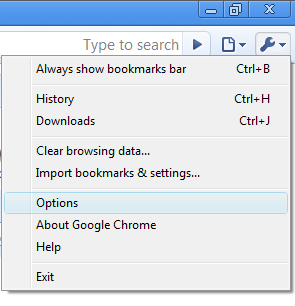
  4. Now go to Tools menu “Options” and click on “Make Google Chrome my default browser”
  5. You should see that “The default browser is currently Google Chrome.” in green Color
Google Chrome Options Menu  
Google Chrome Options Menu
Make Google Chrome as your default browser

Monday, March 8, 2010

View Config Files Without Comments

I've been using this grep invocation to trim comments out of config files. Comments are useful, but difficult to get only the active configuration entries which will be less than 20 or 25 lines from a very long file.

$ grep ^[^#] /etc/ntp.conf

The regex ^[^#] matches the first character of any line, as long as that character that is not a #. Because blank lines don't have a first character they're not matched either, resulting in a nice compact output of just the active configuration lines.

Your comments are always welcome.

Regards
Shiroy Pigarez

Setup Your Linux Server to Use a Serial Console

Do you have a linux server without a keyboard or monitor? Need to administer the server on-site but don't want to lug over a monitor and keyboard (or kvm)? Then setup the server to output the console to a serial port and use screen/minicom (Hyperterminal or putty in Windows) to console into the server over a serial cable.

To set this up, you need to edit /etc/inittab to tell it to start a terminal on the serial port for the console. If you want to see the kernel load and see all the services start then you also need to configure grub to use the serial port as well.

Edit /etc/inittab and add the line starting with "co" to the file (substitute the device name of your serial port for ttyS0 below):

co:2345:respawn:/sbin/agetty ttyS0 9600 vt100-nav # ADD THIS LINE
1:2345:respawn:/sbin/mingetty tty1
2:2345:respawn:/sbin/mingetty tty2
3:2345:respawn:/sbin/mingetty tty3
4:2345:respawn:/sbin/mingetty tty4
5:2345:respawn:/sbin/mingetty tty5
6:2345:respawn:/sbin/mingetty tty6

To watch the kernel load (and all the services) you must configure grub to enable the console option in the kernel on boot. Edit /boot/grub.conf and add the "serial" and "terminal" lines below, and modify the "kernel" line to include the console specification:

serial --unit=0 --speed=9600
terminal --timeout=5 serial console
title CentOS (2.6.9-55.0.2.EL)
root (hd1,0)
kernel /vmlinuz-2.6.9-55.0.2.EL ro root=/dev/VolGroup00/LogVol00 console=ttyS0,9600n8
initrd /initrd-2.6.9-55.0.2.EL.img

To connect to the server just hook a serial cable from your laptop to the server. Set the speed to 9600, no parity and 8bits. Boot up the server, you should see kernel output, services load, and finally a login prompt. After you disconnect you can easily re-connect and log in: just fire up your terminal emulator, connect your serial cable, hit enter a few times and you should get a prompt to log in.

Thursday, March 4, 2010

How to change the password in Symantec Client Security 3.x and Symantec AntiVirus Corporate Edition 10.x

Reset the Symantec System Center admin user password
You can use the Password Reset Utility to reset any user's password.
You must have Administrator access to the primary server of the server
group.
To reset the Symantec System Center admin user password
   1. On the computer running Symantec System Center, start Windows
Explorer.
   2. Go to \Program Files\Symantec\Symantec System Center\Tools.
   3. In the right pane, double-click the IFORGOT.exe file.
   4. In the Primary server field, type the name of the server group's
primary server.
   5. In the user field, type admin
   6. In the New Password and Confirm New Password fields, type the
new password.
   7. Click Reset Password.
      You may be prompted for a Windows user name and password if you
specify a remote server.

Thursday, February 4, 2010

Get Mozilla FIrefox 3.6 Version

What’s New in Firefox 3.6

Firefox 3.6  is built on Mozilla's Gecko 1.9.2 web rendering platform, which has been under development since early 2009 and contains many improvements for web developers, add-on developers, and users. This version is also faster and more responsive than previous versions and has been optimized to run on small device operating systems such as Maemo.
Notable Firefox 3.6 features include:
  • Available in more than 70 languages - get your local version.
  • Support for a new type of theme called Personas, which allow users to change Firefox's appearance with a single click.
  • Protection from out-of-date plugins to keep users safer as they browse.
  • Open, native video can now be displayed full screen and supports poster frames.
  • Improved JavaScript performance, overall browser responsiveness, and startup time.
  • The ability for web developers to indicate that scripts should run asynchronously to speed up page load times.
  • Continued support for downloadable web fonts using the new WOFF font format.
  • Support for new CSS attributes such as gradients, background sizing, and pointer events.
  • Support for new DOM and HTML5 specifications including the Drag & Drop API and the File API, which allow for more interactive web pages.
  • Changes to how third-party software can integrate with Firefox in order to prevent crashes.
Developers can find out about all the changes and new features at the Mozilla Developer Center.

Download Link:http://mirror.netcologne.de/mozilla.org/firefox/releases/3.6/win32/en-US/Firefox%20Setup%203.6.exe